
Revoking a proxy removes a submission from the quorum and vote tally. This process ensures that owner records remain accurate if a submission needs to be corrected or cancelled.
Locate the Owner Record
- Log in to the GetQuorum Dashboard > select your Meeting.
- Select Membership from the left-hand sidebar.
- Search for the owner by name, email, or unit number.
- Click the owner's name to open their profile.
Revoke the Submission
- Locate the Proxy: section (in bold) under the owner's contact details. This section displays the submitter, timestamp, proxy holder, and submission type (Electronic or Paper).
- Click the Red Trash Can icon located to the right of the proxy details.

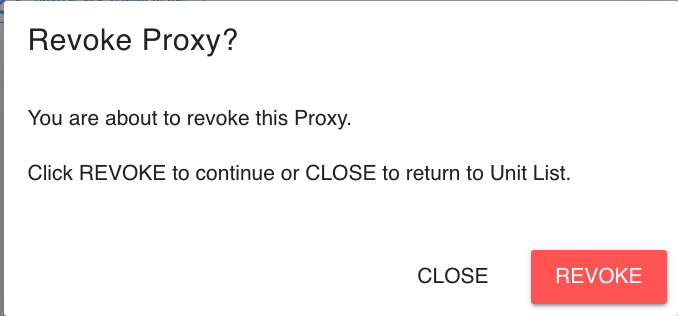
- Click the red Revoke button in the pop-up window to finalize the revocation.
The owner's status will update immediately, and the proxy will no longer be counted toward quorum or the vote tally.