
Unmute Issues
If an attendee cannot be heard after being prompted to speak, use the toggle trick to reset their microphone connection.
-
Locate the participant experiencing issues.
-
Click Disable talking.
-
Click Allow talking.
-
Repeat this toggle process a few times if the microphone fails to activate initially.
General Audio Troubleshooting
-
If the unmute toggle does not fix the issue, walk the participant through these standard system checks
-
Check Audio Settings: Click the up arrow next to Audio Settings in the bottom-left corner to switch the active audio device or run an audio test.
-
Refresh Browser: Refresh the browser tab and accept all requested microphone permissions when prompted.
-
Reset Computer Audio: Select Leave Computer Audio, then click Join Audio by Computer and accept any permission prompts.
-
Launch Zoom App: Click the Open in Zoom link at the top of the Integrated Portal screen to switch to the stable desktop client, which bypasses browser restriction issues.
Note: Having the participant re-join the Meeting through the native Zoom application instead of the Integrated Portal is the fastest way to bypass browser permission blockers.
Send Dial-In Credentials
If a participant's computer audio completely fails, you can email them alternative phone dial-in information directly from the platform dashboard.
-
Navigate to Membership > click the participant's Unit.
-
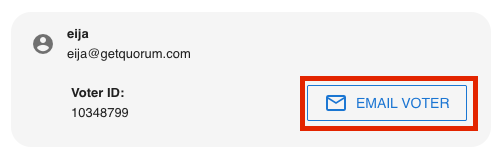
Click EMAIL VOTER in the Owner Card.
-
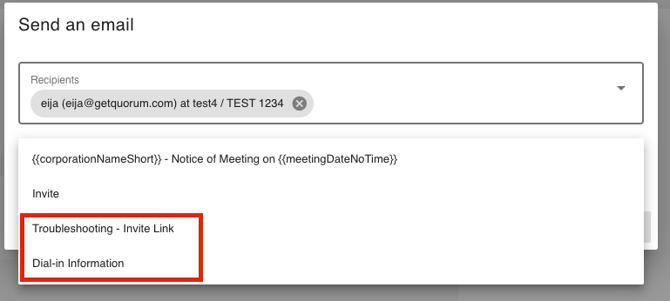
Click Dial-in Information to send the phone access details or Troubleshooting - Invite Link.
Note: If necessary, your Support Member can also send the Dial-in Information Link or the Troubleshooting - Invite Link from the Membership view. Reach out to them via the Chat Beacon!