Updating Consent Status
When a voter has no existing record, the form is fully accessible for manual updates.
- Log in to your Dashboard: Log in to the GetQuorum Dashboard using your credentials
- Locate your Campaign: Once logged in, select the campaign that requires the membership update and click on it
-
Navigate to Membership: Select the Membership tab from the left-hand menu.
-
Locate the Member: Use the search bar to find the owner by Unit Number, Name, or Email Address.
-
Open Member Card: Click anywhere on the member's row except for the checkbox. This will expand the unit information and allow you to click on the Owner Card
- Open the Edit Consent Dialog: Click the Notices or Voting button. This will be grey, red, or green depending on the current status of the voter's consent.
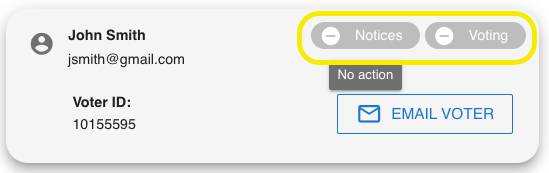
- Toggle the Notice and Voting checkboxes independently based on instructions.
- Notice: Permission to send Meeting notices electronically.
- Voting: Permission to participate in electronic voting.
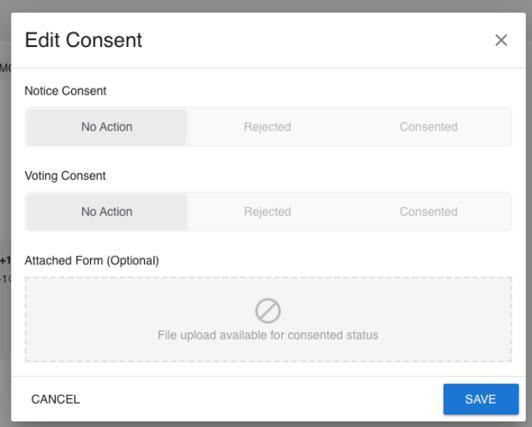
- Click Save.
Adding Proof of Consent
To maintain a clear audit trail, you can attach documentation to manual records.
-
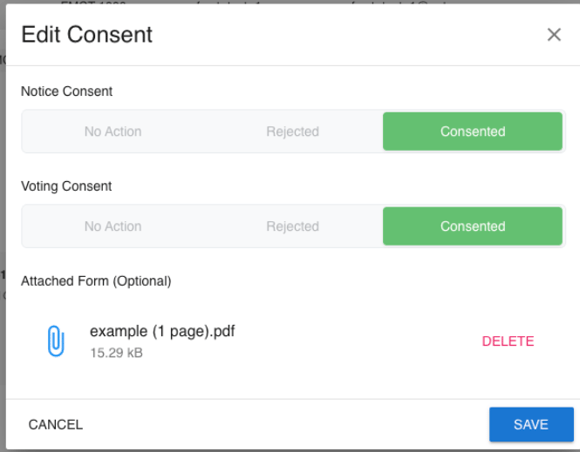
Upload Files: Optionally upload a scanned paper form or a PDF of an email authorization.
-
Historical Records: The system creates a fresh historical record every time a new file is uploaded.
-
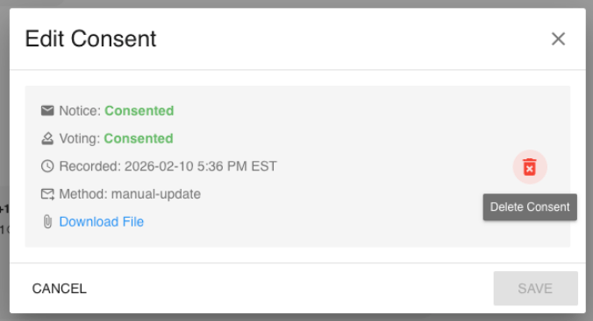
Retrieval: If a file is already attached, click the Download File link to retrieve it.
Managing Locked Consents
Active consents are locked to prevent accidental overwrites and maintain history. If a consent is active, the dialog displays a read-only summary including the status, method, and date.
Click the Trash Icon to delete the existing active consent.
Submit the new consent update.