
Overview
Meeting documents provide your board meeting attendees with necessary information and context. Managing these files effectively ensures participants are prepared and workflows remain organized.
Prerequisites
- Admin access to the GetQuorum platform.
- Active Virtual Board Meeting created within the dashboard.
Uploading and Organizing Documents
- Navigate to Dashboard > Select your Virtual Board Meeting > Navigate to Documents
- Select Meeting Documents (public to members) or Private Documents (just for you)
- Click Upload
- Drag or upload the file from your local device.
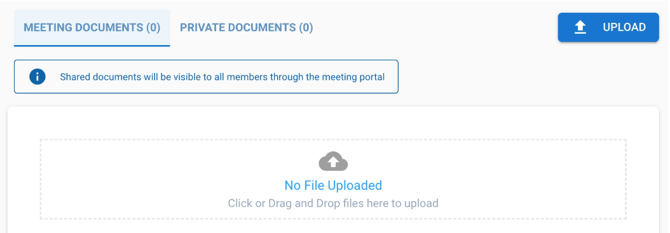
Sharing documents with board members
Select the Meeting Documents tab to upload files you’d like to share with your board members during the meeting (e.g. agendas, previous meeting minutes).
You can upload items before or during the meeting. Anything uploaded to Meeting Documents can only be viewed by you and those on your members list.
Private Documents are only accessible to you, the meeting manager.
Important files such as attendance logs and Zoom Webinar recordings (if enabled) will be uploaded to Private Documents automatically after the meeting. You can also choose to upload documents for your own reference.
More about private documents
Once your meeting is complete, you will receive an email notification if there are any files available for download in the Private Documents tab. These files are only accessible to you via the Dashboard and may include:
- A Zoom Webinar recording if enabled prior to the meeting
- An attendance log if you invited spectators to join your meeting
- Poll results if you launched any during the meeting