
Meeting Impact and Device Compatibility
As a Meeting moderator, your setup process remains unchanged. Start the Meeting from the GetQuorum Dashboard Webcast tab to launch your Zoom application.
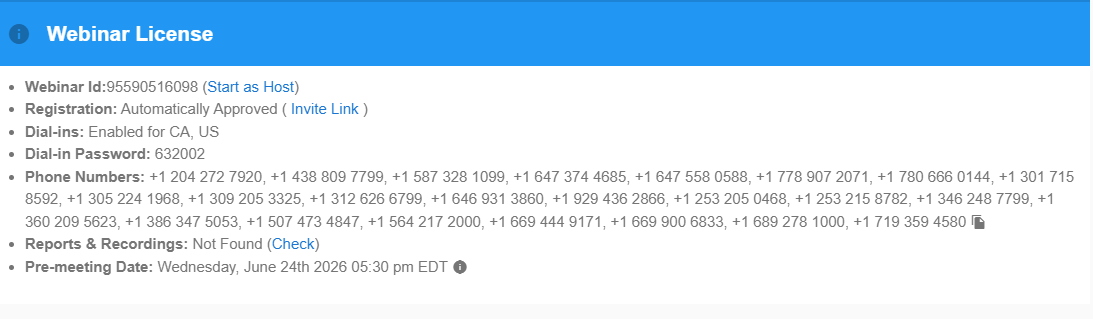
Portal compatibility and functionality vary based on the device the attendee uses to join the Meeting:
Desktops and Laptops: Attendees are automatically prompted to join using the integrated portal via a web browser. The portal works on web browsers; the best experience is using the latest version of Google Chrome, but the latest versions of Firefox, Safari, and Edge work too.
Tablets and Smartphones: Attendees must use the native Zoom application to view and hear the Meeting. They must click the blue Go to my meeting portal button in their email to vote.
Attendee Interface and Experience
When attendees join the Meeting on a desktop or laptop, they enter a combined digital environment designed for simultaneous viewing and participation:
Unified Interface: The interface loads directly in their web browser, splitting the screen or organizing layout sections so the live Zoom audio/visual feed runs side-by-side with the active vote.
Streamlined Authentication: Attendees pass directly into the portal secure link from their registration email, eliminating manual login screens.
Interactive Voting: When a vote is called, the live ballot displays directly next to the media player, allowing attendees to select options and submit ballots while maintaining uninterrupted view and sound of the live floor.
Troubleshooting Attendee Issues
Audio Issues: If an attendee cannot hear the stream or speak through the portal, they must grant explicit browser and host permissions. Instruct them to complete these steps:
-
Accept all browser prompts to enable microphone and video access.
-
Accept all on-screen prompts from the host to enable microphone and video access
Persistent Technical Issues
If an attendee continues to experience problems with the integrated portal, instruct them to use this split-window workaround:
1. Click Open in Zoom at the top of the screen.
2. Keep the Zoom application running in the background to view and hear the Meeting.
3. Navigate back to the web browser portal to cast live votes.
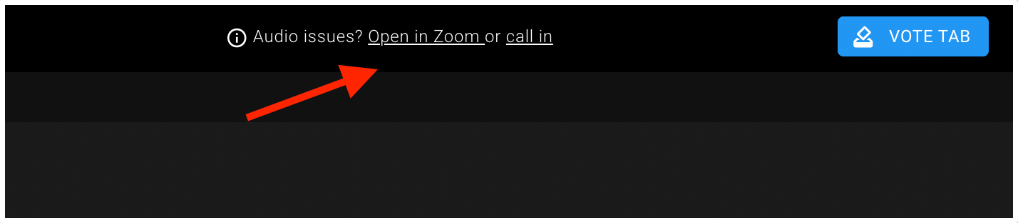
Note: If an attendee accidentally closes their web browser voting portal, they can rejoin by opening the email sent 30 minutes prior to the Meeting and clicking GO TO MY MEETING PORTAL.