
Accessing Your Electronic Proxy Tool
-
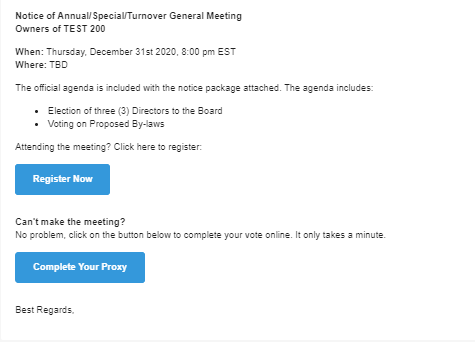
Check your email for the message from your board of directors about the meeting. If you don't see it, please check your spam folder.
-
In the email, click the blue COMPLETE YOUR PROXY button. This will open the proxy tool in a new tab.
Filling Out Your Proxy
Clicking the COMPLETE YOUR PROXY button will take you to a new page where you can verify your voting information and start the process.
Important: Depending on your corporation's rules, you might only be able to select a proxy holder (who votes on all matters for you), or you might be able to instruct your vote on specific business matters (called a "directed proxy").
Owners complete their digital proxy using a brief interactive process:
- Open the Notice of Meeting email and click Complete Your Proxy which will take them to the Proxy Tool.
- Click LET'S GET STARTED on the landing page.
- Answer the step-by-step questions. The platform uses these responses to automatically populate the official Ontario Government Proxy form.

1. Voting on Resolutions
-
If your corporation allows it, you will see questions for Elections/By-laws/Resolutions/Amendments where you can make your voting selection.
-
Once done, you'll get a chance to review your selection(s) before finalizing.
2. Selecting Your Proxy Holder
-
You may need to provide your proxy holder if one hasn't been assigned yet.
-
You can either write in your proxy holder's name or select one of the listed representatives attending the meeting.
-
If you can't make the meeting, the proxy holder's attendance is what validates your vote!
-
Note: If you have questions about who to choose, please consult your management.
Finalizing Your Submission
-
After reviewing all your selections, click to finalize the process.
-
A copy of your completed proxy will be available to download and will also be emailed to you for your records.